Google Keep for ADHD: A 20-Minute Setup That Sticks

Quick answer: Google Keep works well for ADHD because capture is fast and notes are visual: colored cards you can see at a glance. The setup that works: a handful of labels (not 40), one color per job, pinned notes for today, a home-screen widget for one-tap capture, and reminders that now run through Google Tasks and Calendar.
If you're on an iPhone and live in Apple's world, our Apple Notes for ADHD setup is the sister guide. This one is for Android folks, Google Workspace people, and anyone who likes their notes to look like a wall of sticky notes.
Why Keep suits an ADHD brain
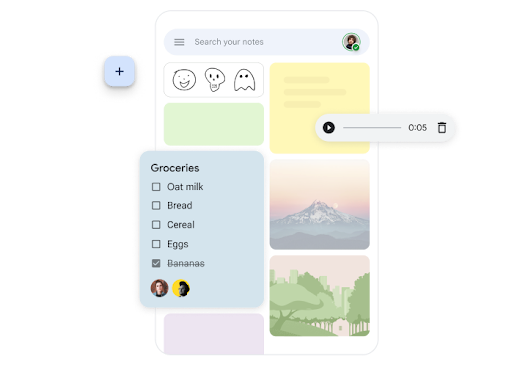
Keep is basically a corkboard. That's the point.
- You can see everything. Notes show as cards, not a list of titles. For people with ADHD, out of sight really is out of mind (I wrote a whole guide on ADHD and object permanence).
- Capture takes seconds. Widget, voice, Wear OS tile, Chrome extension, Gmail side panel. Fewer taps means fewer thoughts lost on the way.
- There's not much to fiddle with. No databases, no templates to tweak at 1 a.m. It's hard to procrastinate by "setting up your system" when there isn't much system to set up lol
- It's free.
First, the reminder change you need to know about
This one catches people. Since mid-October 2025, reminders you set in Keep are saved to Google Tasks, and they show up in Google Calendar and the Tasks app too.
What that means in practice:
- Keep doesn't send the notification anymore. You need the Google Calendar or Google Tasks app installed with notifications allowed, according to Google. No app, no ping.
- Location reminders are gone. Google says they "can no longer be created or received." If your old system was "remind me to buy cat food when I'm near the store," that's over.
- Repeating reminders still work. Set them from "Remind me" in any note.
- Work accounts: your admin has to have Tasks turned on.
The 20-minute Keep setup
Step 1: Create five labels (3 minutes)
Keep allows up to 50 labels. Please don't use 50. Start with five:
- Today: what you're actually doing today
- Inbox: everything you capture before sorting
- Lists: groceries, packing, the hardware store
- Ideas: the 3 a.m. business plan goes here
- Reference: Wi-Fi details, clothing sizes, your kid's teacher's name
To make one: open a note, tap More, then Add label, type the name, and create it. You can rename or delete labels later under Menu > Edit labels.
Step 2: Give each color one job (2 minutes)
Color is the fastest way to scan a board. Pick a rule and stick to it:
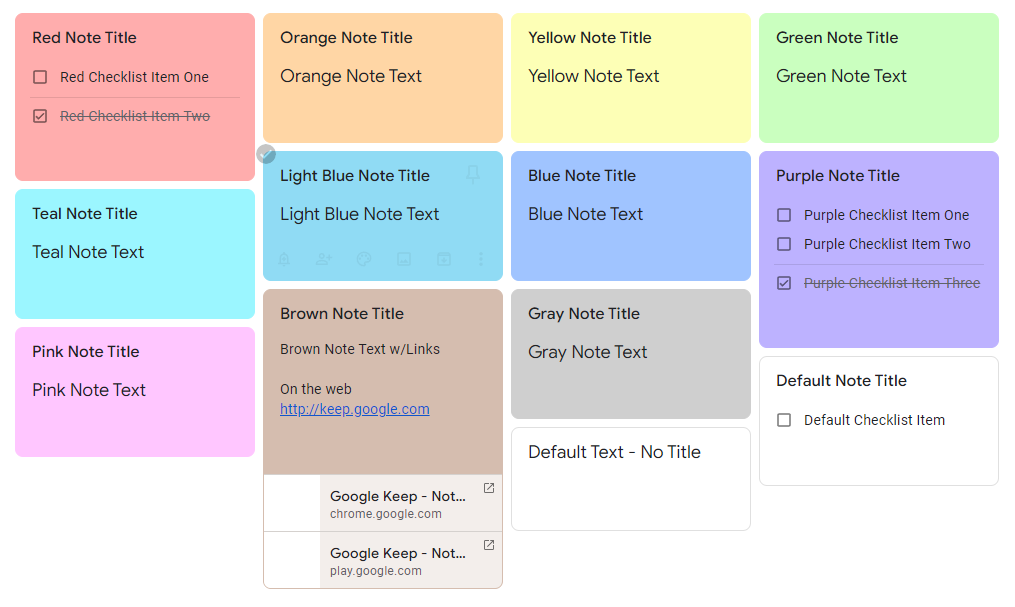
- Red: has a deadline this week
- Yellow: waiting on someone else
- Green: errands and shopping
- Blue: work
- Default (no color): everything else
You can select several notes and change their color at once. Later you can filter your whole board by color, which is great when you just want to see "everything red."
Step 3: Pin three notes, max (1 minute)
Pinned notes stay at the top. Treat the pinned row as your "today" shelf:
- Your Today checklist
- Your current shopping list
- One thing you keep forgetting (meds schedule, a project you're avoiding, whatever)
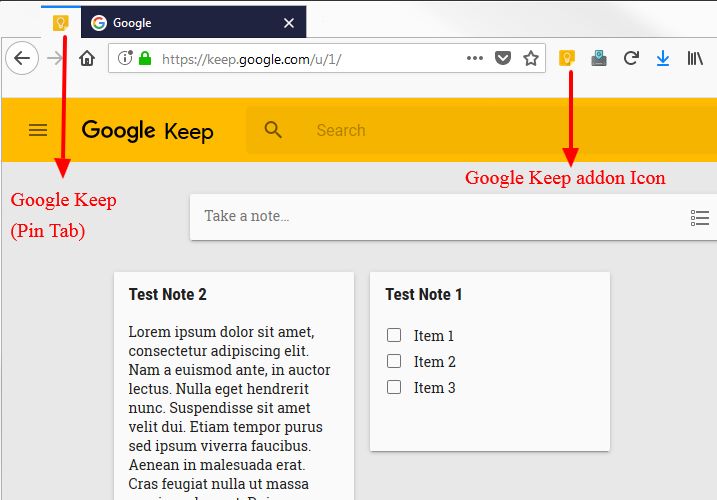
If you pin 12 things, nothing is pinned. Same energy as highlighting the whole textbook.
Step 4: Set up checklists properly (3 minutes)
Two settings make Keep checklists much nicer:
- Go to Settings and turn on "Move checked items to bottom." Finished stuff gets out of your face, but it's still there so you can see what you got done. That tiny win matters.
- Turn on "Add new items to the bottom" if you like lists in the order you thought of them.
You can indent items by dragging them to the right. Use this to break big tasks into tiny ones. A "Do taxes" item might get three indented children: find last year's return, download the W-2 from the work portal, open the tax software (just open it).
Step 5: Put a widget on your home screen (3 minutes)
On Android, Keep has three widgets:
- Quick capture: new note or list in one tap
- Single note: shows one note, and you can tick list items right from the home screen
- Note collection: shows all notes, pinned notes, or one label
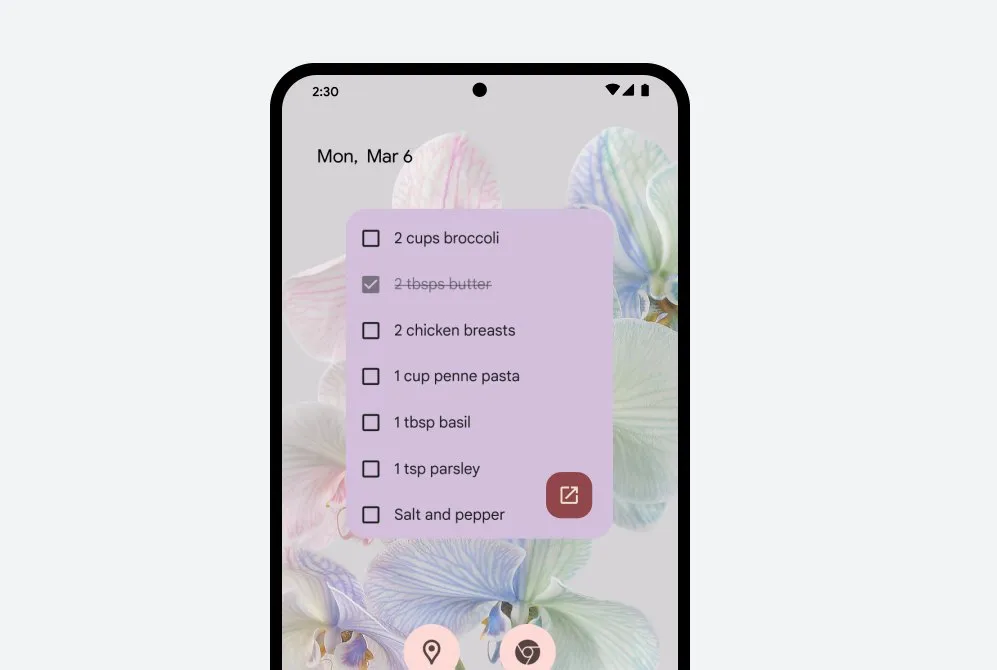
My recommended setup: put Quick capture on your main screen, and a Single note widget showing your Today checklist right next to it. You'll see it every time you pick up your phone. Which, let's be honest, is a lot.
If you wear a Wear OS watch, add the Keep tile and the "Add note" shortcut too.
Step 6: Connect Keep to the rest of your day (5 minutes)
- Chrome extension. Save a page, selected text, or an image to Keep. Heads-up: notes made in the extension don't save automatically anymore, so finish them at keep.google.com.
- Gmail and Docs side panel. Keep opens in the side panel of Gmail, Calendar, Drive, Docs, Sheets, and Slides. Highlight text, right-click, "Save to Keep." Great for grabbing a task out of an email without opening another tab and getting lost.
- Gemini. If you use the Gemini app with Keep connected, you can say things like "add oat milk to my grocery list in Google Keep" and it adds the item. It can also create new lists and find notes.
Step 7: Share the lists other people should help with (3 minutes)
Shared notes let collaborators edit the same list. Your labels, colors, and reminders stay private to you. Perfect for the household grocery list, so you're no longer the only human who knows you're out of coffee.
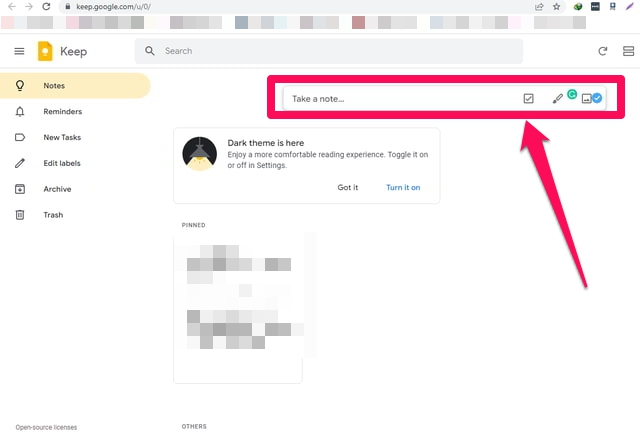
One warning: if you delete a shared note you own, it disappears for everyone.
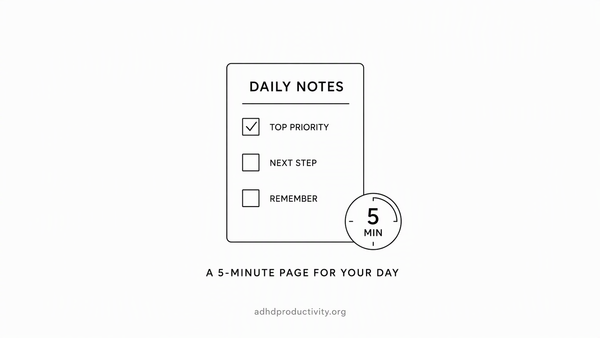
The daily routine (5 minutes, twice a day)
The setup is the easy part. Here's how to actually use it.
Morning (3 minutes):
- Open the Inbox label.
- For each note: move it to Today, give it a label, or archive it.
- Look at your Today checklist. Pick the one thing that matters most and move it to the top.
- Anything with a hard time? Tap "Remind me" so it lands in Tasks and Calendar.
Evening (2 minutes):
- Look at what got checked off. Enjoy it for a second.
- Unfinished items: move to tomorrow's Today list or archive them if they don't matter.
- Archive anything you're done with. Archived notes keep their reminders and you can find them later under Menu > Archive.
The rest of the day, Keep is just a dumping ground. Capture fast, sort later. That split is close to what CHADD recommends: keep a running brain-dump list and move items to an action list every day or two. My brain dump guide goes deeper.
Keep tricks that help ADHD brains
- Voice notes for when typing is too much. Tap Create, then Recording. On iPhone, voice memos are transcribed automatically, per the App Store listing.
- Photo of the thing instead of writing about the thing. Parking spot, whiteboard, receipt. You can search words inside images (English only)
- Use search filters. Filter by type (reminders, recordings, URLs, and more), label, color, or even "things" like books or travel.
- Deleted something by accident? Trash keeps notes for 7 days.
- Rich text for longer notes. Bold, italics, and headings work on Android and web, so a longer reference note doesn't have to be a wall of text.
Where Google Keep falls short
Keep is great for quick capture and simple lists. It gets wobbly when you push it:
- No real task manager. No priorities, no projects, no "what should I do next." Reminders now live in Tasks, which helps, but it's still two apps.
- Big piles get messy. After a few hundred notes, the corkboard turns into a junk drawer. Labels help. The weekly archive helps more.
- No planning help. Keep holds your stuff. It won't help you decide what to do with it.
- Search is literal. It finds words. It won't answer "what did I decide about the vacation?"
- AI extras cost money. "Help me create a list" inside Keep is Android only, for Google AI Pro or Ultra subscribers or Pixel owners.
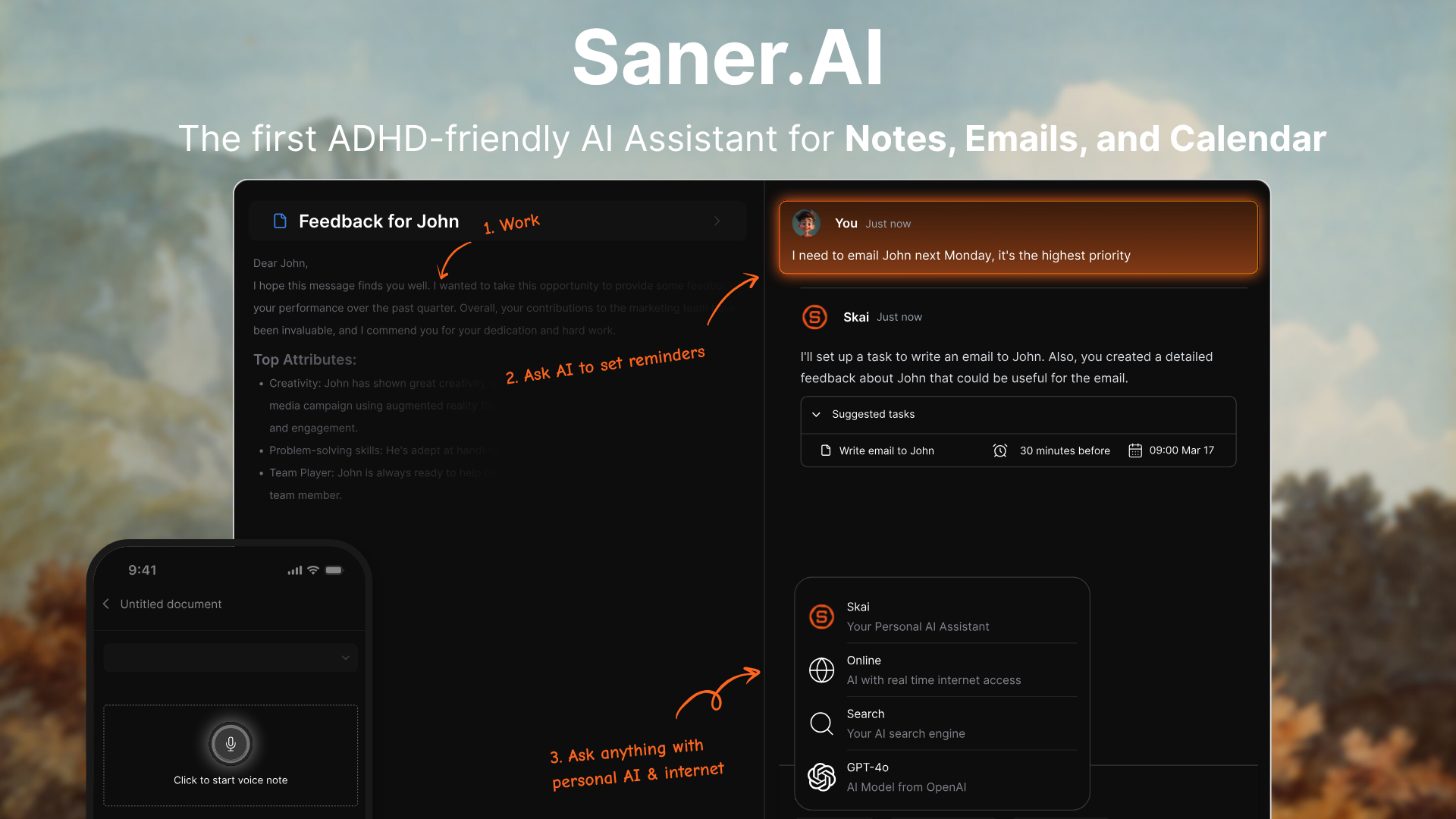
If you hit those walls, that's usually the moment people move their task side elsewhere and keep Keep for lists. Saner.AI is one option: it pulls tasks out of notes and email, builds a daily plan, and lets you ask questions across your notes, with Google Calendar and Gmail sync.
Our best note-taking apps for ADHD roundup and best reminder apps list cover more alternatives.
FAQ
Is Google Keep good for ADHD? Yes, for quick capture and simple lists. Notes show as colored cards you can see at a glance, capture takes a tap from a widget or the Gmail side panel, and there's little to over-customize. It's weaker as a task manager: no priorities, projects, or planning help.
Why are my Google Keep reminders not working? Since October 2025, Keep reminders are saved to Google Tasks, and Keep no longer sends the notification itself. Install the Google Calendar or Google Tasks app and allow its notifications. On a work account, your admin also has to have Tasks turned on.
Does Google Keep still have location reminders? No. Google says location-based reminders can no longer be created or received. Old location reminders were moved to Tasks with the location kept in the task description.
How should I organize Google Keep with ADHD? Use five labels (Today, Inbox, Lists, Ideas, Reference), give each color one job, pin no more than three notes, and add a Quick capture widget to your home screen. Sort the Inbox label once in the morning and once in the evening.
How many labels can you have in Google Keep? Up to 50. For ADHD, start with about five so sorting stays fast.
Is Google Keep free? Yes, the app is free. Some AI extras cost money: "Help me create a list" needs a Google AI Pro or Ultra plan or a Pixel phone, and Keep Live needs a paid Google AI plan.
Google Keep or Apple Notes for ADHD? Pick the one tied to the phone and email you already use. Keep fits Android and Gmail users and shows notes as visual cards. Apple Notes fits iPhone users. See my Apple Notes for ADHD guide.