Apple Notes for ADHD: How to set it up?

The short answer
Apple Notes is a solid ADHD notes app because it's already on your iPhone, it opens fast, and it asks for almost zero setup. But, it won't remind you of anything on its own.
So the solution is a tiny system. Two pinned notes, four tags, a couple of Smart Folders, and one habit. You can set it up in about 20 minutes, and below is how.
Why the boring default app can beat the fancy one
If you have ADHD, you've probably downloaded at least one "life-changing" productivity app that now lives in a folder called Utilities 2. No shame. It happens

There's a reason default apps work. The NIMH lists "trouble remembering daily tasks" and "frequently losing things or being forgetful" among common ADHD symptoms in adults (NIMH). And a 2013 meta-analysis of 38 studies found adults with ADHD have moderate working memory deficits compared with controls (Alderson et al., 2013).
When your working memory drops things, speed of capture is everything. Apple Notes wins here:
- No login, no onboarding. It's just there.
- It syncs through iCloud. iPhone, iPad, Mac.
- It's free. Already paid for, technically, when you bought the phone.
- It's the app you'll actually open. The best system is the one you don't abandon in two weeks.
External systems also have real evidence behind them. In a 2010 JAMA trial, adults with ADHD who got CBT that started with an organizing and planning module (a calendar and task-list system, plus breaking tasks into steps) improved more than a comparison group, and the gains held at 12 months (Safren et al., 2010). Apple Notes won't replace therapy. It can hold the lists, though.
The Apple Notes features that matter for ADHD
Apple keeps adding stuff. Most of it you can ignore. These are the ones worth knowing:
- Pinned notes. Pinned notes always sit at the top of the list -> This is your "out of sight, out of mind" fix.
- Checklists that auto-sort. Checked items can drop to the bottom automatically: Settings > Apps > Notes > Sort Checked Items
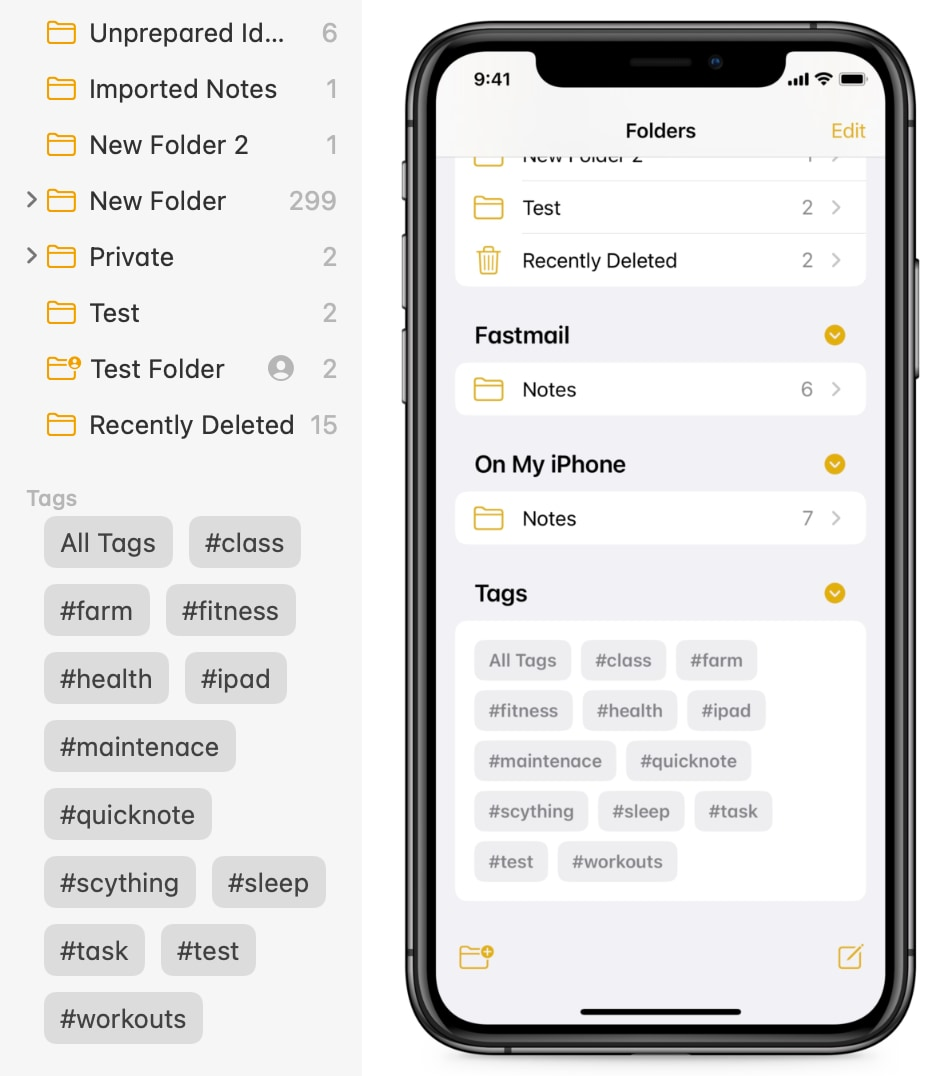
- Tags and Smart Folders. Add
#tagsanywhere in a note, then make Smart Folders that filter by tag, checklists, dates, and more
- Collapsible headings. Since iOS 18, you can collapse sections under a heading - Long notes stop being a wall of text.
- Highlights in five colors. Also from iOS 18 - Color-coding for people who love color-coding.
- Audio recording with transcripts. You can record audio right inside a note and get a transcript; on supported devices, Apple Intelligence can summarize it
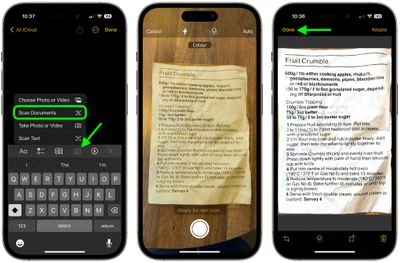
- Document scanning. Scan paper into a note, and the text becomes searchable
- Quick Note on Mac. Press Fn/Globe + Q, or use the bottom-right hot corner, to jot something over any app
- Markdown import and export. Added in iOS 26 (Apple Support). Useful if you ever move to another app.
The 20-minute Apple Notes setup for ADHD
Step 1: Turn on auto-sort for checklists (1 minute)
Go to Settings > Apps > Notes > Sort Checked Items and pick Automatically. Now finished items sink to the bottom, and the top of every list shows only what's left.
Step 2: Create and pin your Inbox (2 minutes)
- Make a new note called
📥 Inbox. (Fine, one emoji. It helps you spot it.) - Swipe right on it in the list and tap the pin.
This is where everything goes first. Grocery thought, work idea, the name of that show. Dump it here. Don't sort while capturing.
Step 3: Create and pin your Today list (2 minutes)
- Make a note called
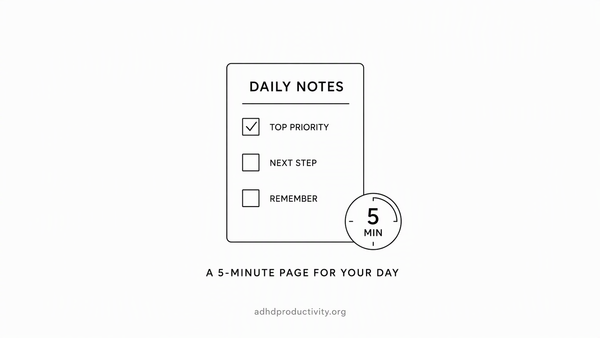
Today. - Add a checklist with three lines. Only three.
- Pin it.
Three is the cap. Your brain will want to add twelve. That's how you end up with a list that makes you want to lie on the floor. For more on this, see how to make an ADHD to-do list.
Step 4: Pick four tags (3 minutes)
Keep it short. Here's a starter set:
#todofor anything you need to act on#waitingfor things you're waiting on someone else for#errandfor stuff you do while out#reffor info you'll need later, like shoe sizes or the wifi name at your parents' place (real passwords belong in a password manager)
Four tags. Not forty. You can add one more after a month if you actually miss it.
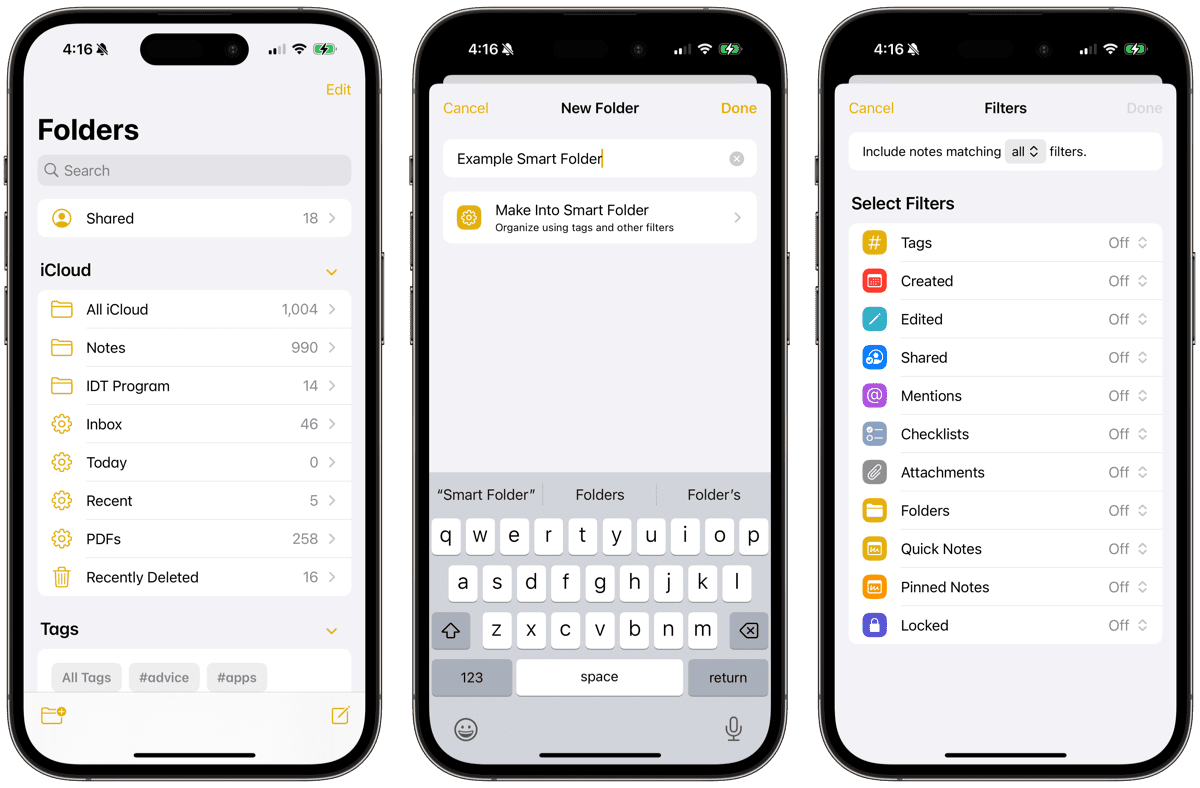
Step 5: Make Smart Folders for each tag (5 minutes)
In the sidebar, create a Smart Folder for #todo, #waiting, and #errand. Now, when you're at the store, you open Errands and see every errand from every note in one place.
Step 6: Make one Archive folder (1 minute)
Everything that isn't active goes here. You don't need a folder per project. Search is good, and scanned text is searchable too.
Step 7: Set up fast capture (5 minutes)
- On Mac: turn on the Quick Note hot corner, or remember Fn/Globe + Q.
- On iPhone: put Notes in your dock. The fewer taps between "thought" and "typing," the better.
- For rambles: open a note and hit record. Talk it out while walking. Read the transcript later.
Step 8: Lock anything sensitive (1 minute)
You can lock notes with a password or Touch ID. Apple can't recover a forgotten custom password, so use your device password if you're the type who forgets passwords. (Hi.)
That's the whole build. Close the settings. Go live your life.
How to use it every day

Morning (3 minutes)
- Open
📥 Inbox. - Pick up to three things for today and move them to
Today. - Highlight the one that matters most.
During the day (seconds at a time)
- Any thought goes into
📥 Inbox. Don't open another note. Don't organize. Just type. - If something comes up while you're at a store, add
#errand.
Evening (2 minutes)
- Glance at
Today. Checked items have already sunk. - Move unfinished items to tomorrow, or delete them if they no longer matter. Deleting counts as progress.
Weekly (10 minutes)
Go through the Inbox top to bottom. For each item, do one of these:
- Act on it now if it takes two minutes
- Tag it
#todo,#waiting, or#errand - Move it into Archive
- Delete it
If you want to go deeper, our guide to planning a week with ADHD pairs well with this review.
Where Apple Notes falls short
- No reminders from checklists. A checklist item can't buzz your phone. If it has a deadline, it also needs to go in Reminders or your calendar. iOS 26 added Reminder Suggestions, which use Apple Intelligence to pull tasks out of things like emails, websites, or notes, but you still have to accept them.
- No due dates or calendar view. Notes doesn't know what "Thursday" means.
- Apple-only. It shines on iPhone and Mac. If you work on Windows all day, it gets clunky.
- No AI that plans for you. Writing Tools can rewrite and summarize text. They won't look at your notes and tell you what to do next.
If you're fine with that, great. Notes plus the Reminders app covers it. If you keep forgetting things anyway, our list of the best reminder apps for ADHD has options that nag harder.
When to add another app on top of Apple Note?
If Apple Notes is working, keep using it. If your Inbox keeps turning into a tomb of tasks you never acted on, that's the gap other apps cover. And I use Saner.AI to solve it
- It imports Apple Notes. Saner.AI can import from Apple Notes, Notion, Evernote, and Obsidian
- It turns brain dumps into tasks. The built-in AI assistant can turn a messy brain dump or an email into tasks, then help prioritize and schedule them
- It actually reminds you. Reminders arrive as push notifications on iOS and Android, or as Chrome notifications
- It connects to your calendar. Google Calendar syncs both ways, and there are connectors for Gmail, Google Drive, Slack, and Outlook
- There's a free plan.
A simple combo: keep Apple Notes for quick capture and reference, and use Saner.AI as the place where tasks get dates and reminders. Once a week, paste your #todo items into Saner and let it sort them onto your calendar.
Common mistakes (that we all make)

- Too many folders. Folders feel organized. Then you forget which one you used. Start with Inbox, Archive, and Smart Folders.
- A Today list with 15 items. That's a wish list. Three.
- Skipping the weekly review. Without it, the Inbox becomes a junk drawer. Junk drawers are where tasks go to die.
- Changing the system every week. Stick with it for 30 days before you add anything.
- Treating Notes as a reminder app. It isn't one. Anything with a time goes into Reminders, your calendar, or a planner app.
For the bigger picture on capture habits, see our guide to the ADHD brain dump.
Conclusion
You don't need the perfect setup. You need a pinned Inbox and the habit of looking at it. Do Step 2 right now, before you close this tab. That one pinned note does most of the heavy lifting.
FAQ
Is Apple Notes good for ADHD?
Yes, for capture. It's already on your iPhone, opens fast, and needs almost no setup, which matters when your working memory drops things. It won't remind you of deadlines, so pair it with Reminders, your calendar, or a planner app.
How should I organize Apple Notes with ADHD?
Keep it small: a pinned Inbox, a pinned Today checklist with three items, four tags (#todo, #waiting, #errand, #ref), Smart Folders for those tags, and one Archive folder. Review the Inbox once a week.
Can Apple Notes send reminders?
No. Checklist items in Notes can't trigger notifications. Since iOS 26, Reminder Suggestions can use Apple Intelligence to suggest reminders from notes, emails, and websites, but anything time-sensitive is safest in the Reminders app or a calendar.
Are Apple Notes tags or folders better for ADHD?
Tags plus Smart Folders. A single note can carry several tags, and Smart Folders gather them automatically, so you don't have to remember where you filed something. Keep one Archive folder for everything that's done.
What's the fastest way to capture a note on iPhone or Mac?
On Mac, press Fn/Globe + Q or use the bottom-right hot corner for Quick Note. On iPhone, keep Notes in your dock and capture everything into one pinned Inbox note. For long thoughts, record audio inside a note and read the transcript later.
Can I move my Apple Notes to another app later?
Yes. Since iOS 26 and macOS Tahoe 26, Notes can export Markdown. Saner.AI also imports Apple Notes directly, alongside Notion, Evernote, and Obsidian.